DIM-05-02 Application Access Risks and Prevention
Operating systems (Windows, OSX, Android, and IOS) offer the opportunity for users to lock their device when it is inactive. This is a ‘soft-lock’ that prevents access when the device is powered on or inactive for a certain time period. By setting up your device to detect when you are inactive and automatically lock the device, you can prevent others from working on your device. To unlock access to the device, the person must enter an accepted username and authenticator(s).
Your username on the device may be displayed or known. You should control the security of your authenticator(s). If you use a password, make sure it is a strong password that nobody else knows or can guess. Some devices enable you to use your fingerprint as the authenticator. This is more secure than a password. Some devices use a pattern recognition system as opposed to a password. Choose an approach that you believe offers the best security.
If the applications and internet services you use offer their own security, this is a good option to prevent specific access should someone be able to access the device, or if the device was for some reason not locked.
Application access on shared devices
If a device is used by multiple users, the operating system may support user accounts. If each user has their own account, they can customise their workspace and ensure that their applications and internet services are separate from other user profiles. This is a good idea and offers more protection of your data. A system administrator can however access all user profiles, accounts and data. Ensure that the system administrator is a trusted party.
Internet browser specific risks
You use an internet browser to access application services on the internet. These services may give you the ability to access email, search for information, interact on social media etc.
When using an internet browser, your activity is recorded. There are a few ways in which this takes place:
- The browser keeps track of all sites pages you visit. This is your browsing history.
- The browser also attempts to learn about you and give you a customised service. By keeping track of your activities, areas of interest and habits, the information is used to predict what you may be interested in and to offer you content that may be related to your interested.
- Internet browsers allow users to have their own personal profile. This allows users to organise internet services and content using tabs and bookmarks and to provide a structured way of using the internet. Having a personal profile that you login to, manage and customise, allows you have a common experience across multiple devices.
- Internet browsers allows for website developers to install cookies, pieces of active code, that can monitor and record your activities, keystrokes, and some even offer to remember your usernames and passwords to make it easier for you.
- Internet browsers may allow you to access the internet without updating the history file. This enables you to work ‘incognito’. Although locally the trail of activity won’t be logged, this does not mean that the services you access won’t be logging and keeping records on their own service platforms.
While all of the above motivations for keeping track of you are possibly well intentioned, there are a number of risks that arise.
- Anyone using the browser after you can see what you have been doing by reviewing browsing history
- If you have not logged out of your profile, all your settings, tabs, personal cookies etc., are open to be used by others and they can now access your services and the service providers will see it as you accessing the services.
When accessing application services over the internet, you receive information from, and you send information to the service application. This information can be transferred ‘in the clear’ or ‘encrypted’ depending on the service providers site security.
It is possible for your traffic to be monitored as it flows to and from the service providers site. If information is ‘in the clear’, anyone that can see the traffic flow can see exactly what is being transferred. This could include sensitive information.
When accessing high risk sites, where information is private and confidential, you should always make sure the site is transferring information securely. This can be done by checking the site’s address or URL (universal resource locator) that shows in your browser address bar. The site must indicate ‘https://…” as part of the address, or it must show a padlock symbol indicating data transfers are encrypted.

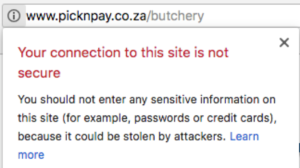
When accessing general internet sites, where you are simply consuming data in the public domain, security is not a major issue. The address of the site may indicate ‘http://…’ without the secure confirmation:

The browser may, as in the example above, give a warning indication that the site is not secure, and provide some guidance:
Internet browser risk Prevention
- Always be aware if the site you are accessing using secure encryption (https://…)
- Don’t do high risk transactions on public networks
- Don’t do high risk transactions on shared devices
- Also logout of any services you access before leaving a device
- Clear out the history files and cache after browsing on a shared device
- Don’t allow cookies to capture sensitive information (usernames and authenticators)
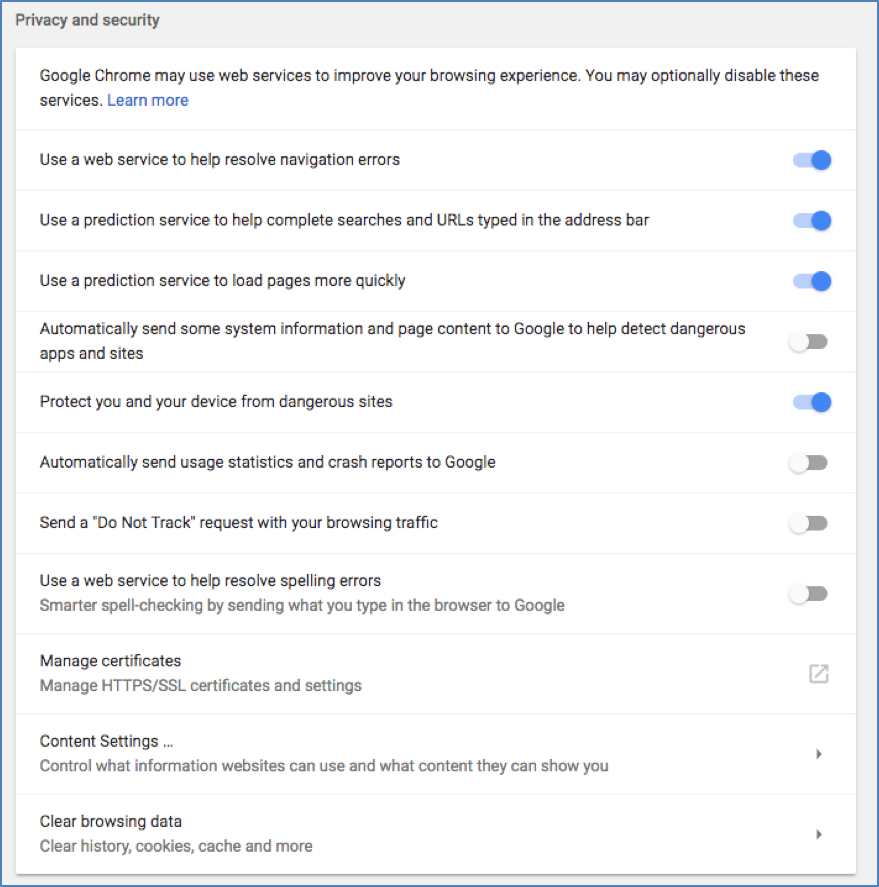
You have the ability to change your browser settings to mitigate risks:
Browser Settings to Mitigate Risks